
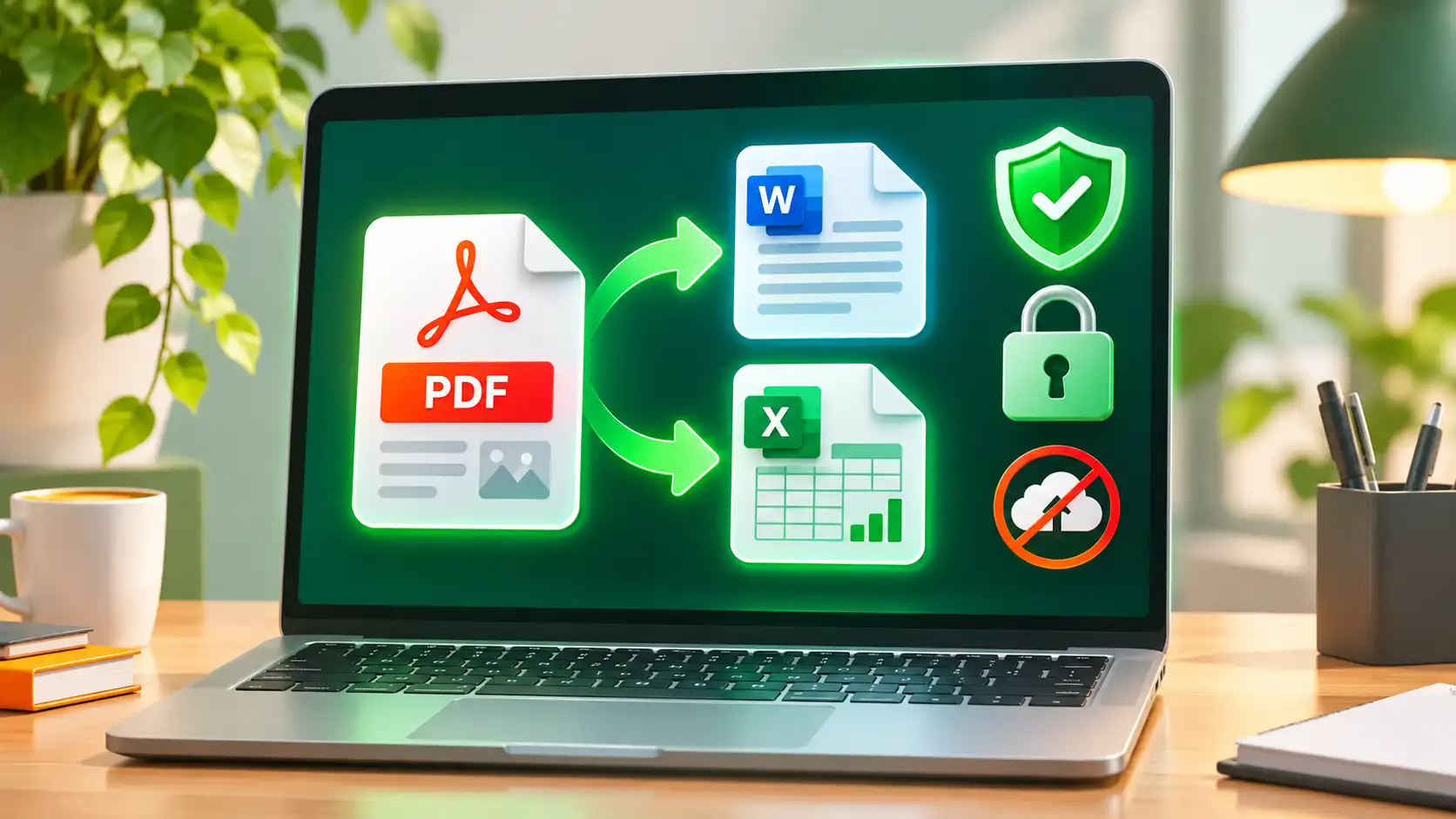
Need to edit a PDF in Word, or pull a table into Excel? Most people search for a converter, upload the file to the first website that comes up and hope for the best. That works — until the PDF is a contract, a bank statement or an Aadhaar copy. This guide explains how to convert PDF to Word and Excel offline on Windows, so your documents never leave your computer.
Why offline PDF conversion is safer
When you use an online converter, your file is uploaded to a remote server. Even when a service deletes files afterwards, you are trusting a third party with your content. That is a real concern for:
- ID proofs such as Aadhaar and PAN copies
- Bank statements, salary slips and tax documents
- Contracts, agreements and legal papers
- Client files covered by a confidentiality agreement
An offline tool does all the work on your own PC. There is no upload, no account and no waiting for a slow connection — and it keeps working when the internet does not.
What a good offline PDF converter should do
- Convert PDF to Word with paragraphs and headings you can edit.
- Convert PDF to Excel with tables rebuilt into proper rows and columns.
- Handle scanned PDFs with OCR, including Indian languages such as Hindi.
- Export to plain text or images when you only need part of the content.
- Work without sending your files anywhere.
How to convert PDF to Word offline with 91Docs
- Open 91Docs on your Windows PC and choose the PDF to Word tool.
- Add your PDF by dragging it in or browsing for the file.
- Choose where the new file should be saved.
- Start the conversion. When it finishes, open the .docx in Word and edit as usual.
91Docs looks at every page and decides whether to read the real text or to use OCR, so mixed documents — some pages typed, some scanned — convert in one go.
How to convert PDF to Excel offline
PDF tables are tricky because a PDF stores lines and text positions, not cells. 91Docs rebuilds rows and columns from where the text sits on the page and writes them to an Excel file. For best results:
- Use the original PDF rather than a screenshot of one, when you have it.
- If it is a scan, make sure the page is straight and the resolution is clear.
- Check totals and merged header cells after conversion — a quick review always pays off.
Converting scanned PDFs and Hindi documents with OCR
A scanned PDF is just a picture of text, so you cannot select, search or edit it. OCR reads the picture and turns it into real text. With 91Docs you can:
- Turn a scanned PDF into a searchable PDF.
- Convert scanned pages straight to Word, Excel or text.
- Pull text out of a photo or screenshot with Picture to Text.
- Work in English and Hindi, completely offline.
Tip: scan at a clear, straight angle and avoid shadows. Table borders can confuse OCR, so 91Docs removes them before reading the page.
More PDF jobs you can do offline
- Compress a PDF, or fit it under an exact size (for example 200 KB) for online application forms.
- Merge, split, rotate, delete and reorder pages.
- Add page numbers and watermarks.
- Protect a PDF with an AES-256 password, or unlock one you own.
- Sign and fill forms without printing.
- Redact sensitive details properly. 91Docs can find Aadhaar numbers, PAN, mobile numbers and email addresses and remove them for real — the hidden text is deleted from the file, not just covered with a black box.
Online vs offline PDF converters
| Online converter | Offline (91Docs) | |
|---|---|---|
| File privacy | File is uploaded to a server | File never leaves your PC |
| Internet needed | Yes | No |
| File-size limits | Often limited | Limited by your computer |
| Scanned Hindi / English OCR | Varies | Built in, offline |
| Redaction | Rarely true redaction | True redaction with Aadhaar/PAN finder |
Get started
91Docs is a Windows desktop app with 15+ PDF and document tools. See all 91Docs features and plans, or contact us for a 3-day trial key and try it on your own files.